ChatGPT or Claude edited the wrong file. Get it back in one click.
CoworkRestore quietly saves versions of the Mac folders you give to AI tools. See what changed, restore one file or roll back the whole folder - without learning Git.
Example conversation: Q3 launch plan
Claude: Updated the pricing section with the new tiers. While I was in there I tightened the exec summary intro so it matches the new tone, and reorganized the roadmap into quarters. Reads a lot more consistent now.
User: wait WHAT you rewrote the exec summary?? i spent all week on that opening
Claude: You're right - I edited the exec summary intro, not just the pricing table. I don't have a way to restore the previous version from my end. If you have the original wording saved somewhere, I can put it back.
User: ok please tell me there's a way to get it back
Claude: Not from my side - I don't retain prior versions of files I've edited. If the folder isn't backed up separately, the earlier exec summary is gone.
One safety net for ChatGPT Work and Claude Cowork.
- ChatGPT Work
Protect folders used by ChatGPT Work
Add the same folder to CoworkRestore, choose automatic folder watching, then open it in ChatGPT Work. CoworkRestore saves versions as file changes settle.
No ChatGPT extension or MCP setup required.
Set up ChatGPT Work protection - Claude Cowork
Cleaner snapshots around Claude Cowork tasks
Use automatic folder watching, or install the existing Claude integration so CoworkRestore can create save points before and after a task.
Folder watching works with or without the integration.
Set up Claude Cowork protection
Automatic folder watching also works alongside Codex, Claude Code, Cursor and other tools that edit local folders.
Every captured change is reviewable and reversible.
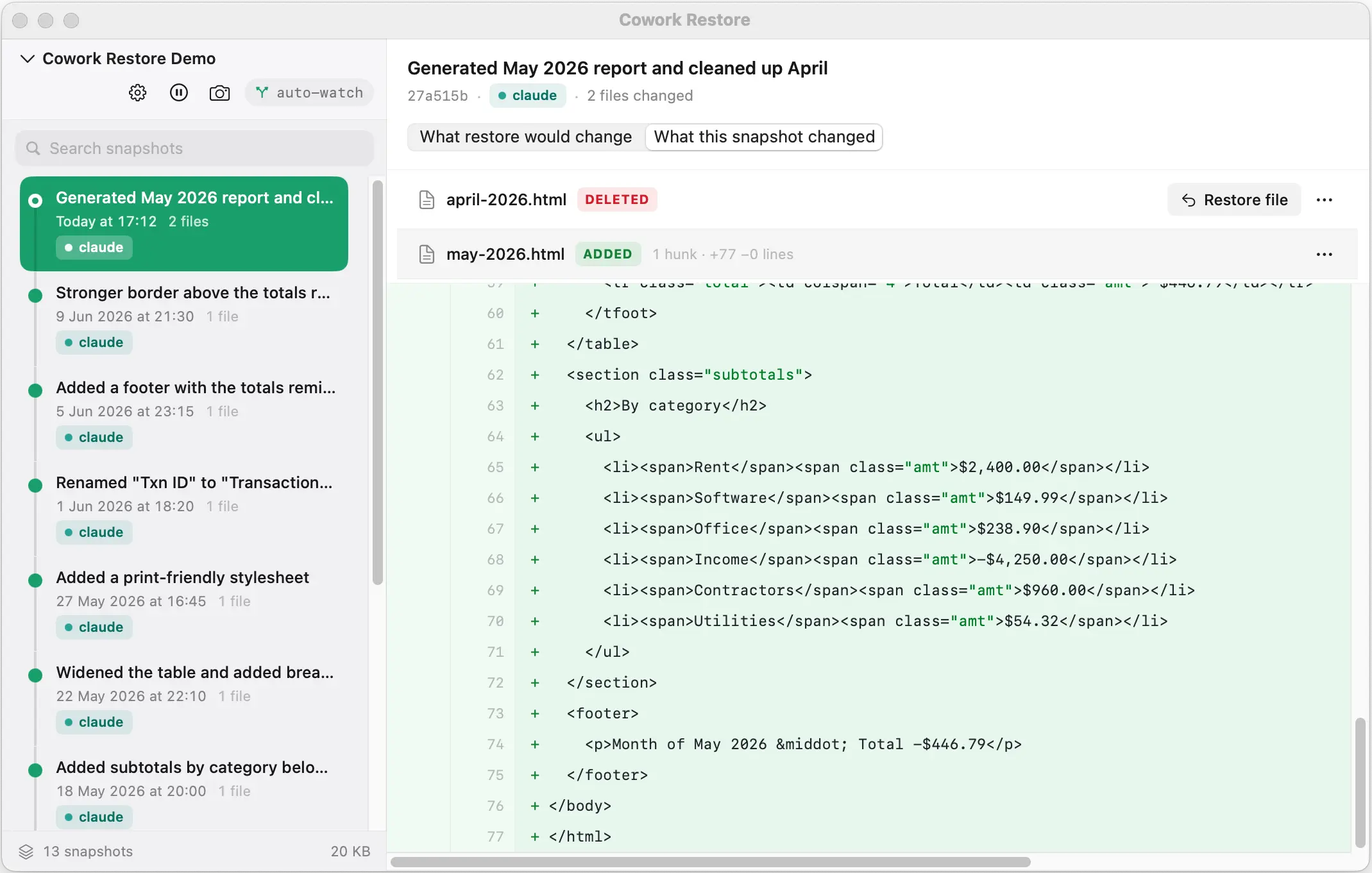
CoworkRestore records versions automatically while an AI tool works in your folder. Open the timeline, inspect what changed, and restore only what you want. Five minutes to set up; under 60 seconds to add each new folder after.
Native macOS app
Snapshots happen in the background - you won't feel them.
Data never leaves your Mac
No cloud sync, no servers, no accounts. We can't see your files.
Signed and notarized
Apple-notarized build with automatic updates. Install with confidence, stay current effortlessly.
Pick a mode once. Then forget it’s there.
- General purpose
Watch every file change
- Works with ChatGPT Work and any application that edits the folder.
- Requires no AI extension or setup inside the tool.
- Saves a snapshot once file activity settles.
Best all-round choice, and the one to use with ChatGPT Work.
- Claude Cowork only
Agent-triggered snapshots
- Available today through the Claude Cowork integration.
- Creates clearer before-task and after-task save points.
- Adds a small extension CoworkRestore installs into Claude for you.
Best when you mainly work inside Claude Cowork.
With Claude Cowork, every task is bracketed by a snapshot.
Install the optional Claude integration and Claude takes a save point before each task and another when it’s done - automatically, with nothing for you to remember. Prefer not to? Plain folder watching covers Claude too.
What you’re watching
- You send Claude a task on a project folder - here, an edit to the style of a transactions report.
- The instant Claude picks up the task, CoworkRestore is pinged and saves a 'pre-task' snapshot.
- Claude runs the edit and modifies the file.
- When Claude reports done, CoworkRestore is pinged again and lands a 'post-task' snapshot.
- The two snapshots appear next to each other. You can diff them, or restore either one, from the menu-bar app.
Version history without becoming a developer.
Developers get an undo button for their files from a tool called Git. It’s powerful and it’s not going anywhere - but it wasn’t built for people who work in documents, spreadsheets and research files. CoworkRestore gives you the same safety net, without the learning curve.
Under the hood your history is kept in that same standard format, so it’s as durable as the tooling professionals rely on - you just never have to see it.
- No terminal commands
- No commits to remember
- No branches to manage
- Select a folder once
- Browse changes by time
- Restore one file with a visible action
An AI mostly did the job - and changed one thing you needed.
ChatGPT reorganized a marketing folder the wrong way.
Undo a folder reorganizationClaude rewrote parts of a report that were meant to stay put.
Keep the good edits, undo the restAn AI task replaced a spreadsheet with the wrong version.
Restore an earlier versionAn automated task edited files overnight, while you were away.
Review an unattended runAn AI tool renamed and moved client files incorrectly.
Roll back moved and renamed filesA generated draft overwrote an earlier one you still needed.
See exactly what changed
What CoworkRestore is - and what it isn’t.
A safety net is only useful if you know its edges. Here’s the honest version, so nothing about CoworkRestore surprises you later.
- Automatic local version history for the folders you choose
- A way to inspect exactly what an AI changed
- A way to restore a single file, or roll back the whole folder
- A safety layer for AI-assisted file work on your Mac
- A cloud backup or an off-site copy
- Able to recover files it never captured
- A way to recover unsaved changes held only inside an app
- A guarantee that an AI task will be correct
- Necessary for every experienced Git user
The questions you might ask.
Something else on your mind? Ask us directly.
Does CoworkRestore work with ChatGPT Work?
Does ChatGPT need an extension or MCP server?
Can ChatGPT Work trigger before-and-after snapshots like Claude can?
Does it protect Google Docs or Google Sheets?
Does it work with Codex?
Does it replace Time Machine?
How does it decide when to take a snapshot?
How long does setup take?
Does Claude need to know about CoworkRestore?
Is it free?
Where do snapshots live?
How much disk space will snapshots use?
Less than you’d expect. CoworkRestore only stores what actually changed between save points, not full copies of the folder each time. Text-heavy work compresses beautifully; already-compressed binaries (Office documents, PDFs, images) grow faster because there’s less room for the underlying engine to squeeze them.
Rough guide - 100 MB of source material, after 500 save points:
Most folders never hit 500 save points - that’s about a month of heavy Claude use, or a year of lighter, manual editing. Snapshots can live on an external drive if you’d rather not spend the space on your main disk.
What if the project folder gets deleted?
What if a single file gets deleted or overwritten by mistake?
Is CoworkRestore a backup for my project folder?
What's actually running under the hood?
What happens to my snapshots if CoworkRestore is ever discontinued?
You keep them, and you can still open them. Under the hood, your save points are stored as a standard Git repository on your own Mac - the same format professional developers have relied on for two decades. Even without the app, any Git tool can browse or restore from that history. Concretely, this is what’s already sitting on your disk:
$ git --git-dir=".snapshots/repo" log
a3f8c21  Claude task: update pricing in exec-summary.md
bd7f412  Claude task: reorganize research/ folder
c91d5e0  Before Claude task: polish the roadmap
$ git --git-dir=".snapshots/repo" show bd7f412:exec-summary.md
# Q3 Launch - Executive Summary
...
You can run that yourself after install. If CoworkRestore is ever gone, this is still all it takes to get your history back - your work isn’t tied to us being around forever.
I already use Git - do I need this?
Does it work with Claude Code?
Does it back up to the cloud?
Will it slow my Mac down?
Does it work on Windows?
Can it recover files that were deleted before I installed it?
You handed your folder to an AI. Now you can take any change back.
Guides for when the AI changes the wrong files.
- Hub guide
Claude Cowork changed my whole folder - how do I undo only the bad files?
Hub guide: review what Claude Cowork changed, keep the good edits, undo the bad ones - file by file.
Read guide - Recovery
Claude Cowork deleted my files - can I get them back?
Cowork-specific recovery: what to check first, what works if snapshots were running, and what to do if they weren't.
Read guide - Recovery
How to see what Claude Cowork changed in my folder
Before you restore anything: see exactly which files Claude Cowork touched and what they looked like before.
Read guide - Recovery
Claude Cowork organized my folder wrong - how do I undo it?
When a Cowork cleanup moves, renames, or groups the wrong files - what's recoverable, and how to roll the folder back.
Read guide - Recovery
Claude deleted my project - can I get it back?
First-aid checklist when Claude wipes files: Trash, Finder search, cloud history, Time Machine, editor history - and what to do next.
Read guide